Cobloc AI: workspace assistant, canvas tools & block connections
A full AI assistant that works across your workspace. Have conversations, create blocks on your canvas, attach images and PDFs, and connect blocks to AI chat for live context.
Cobloc AI page
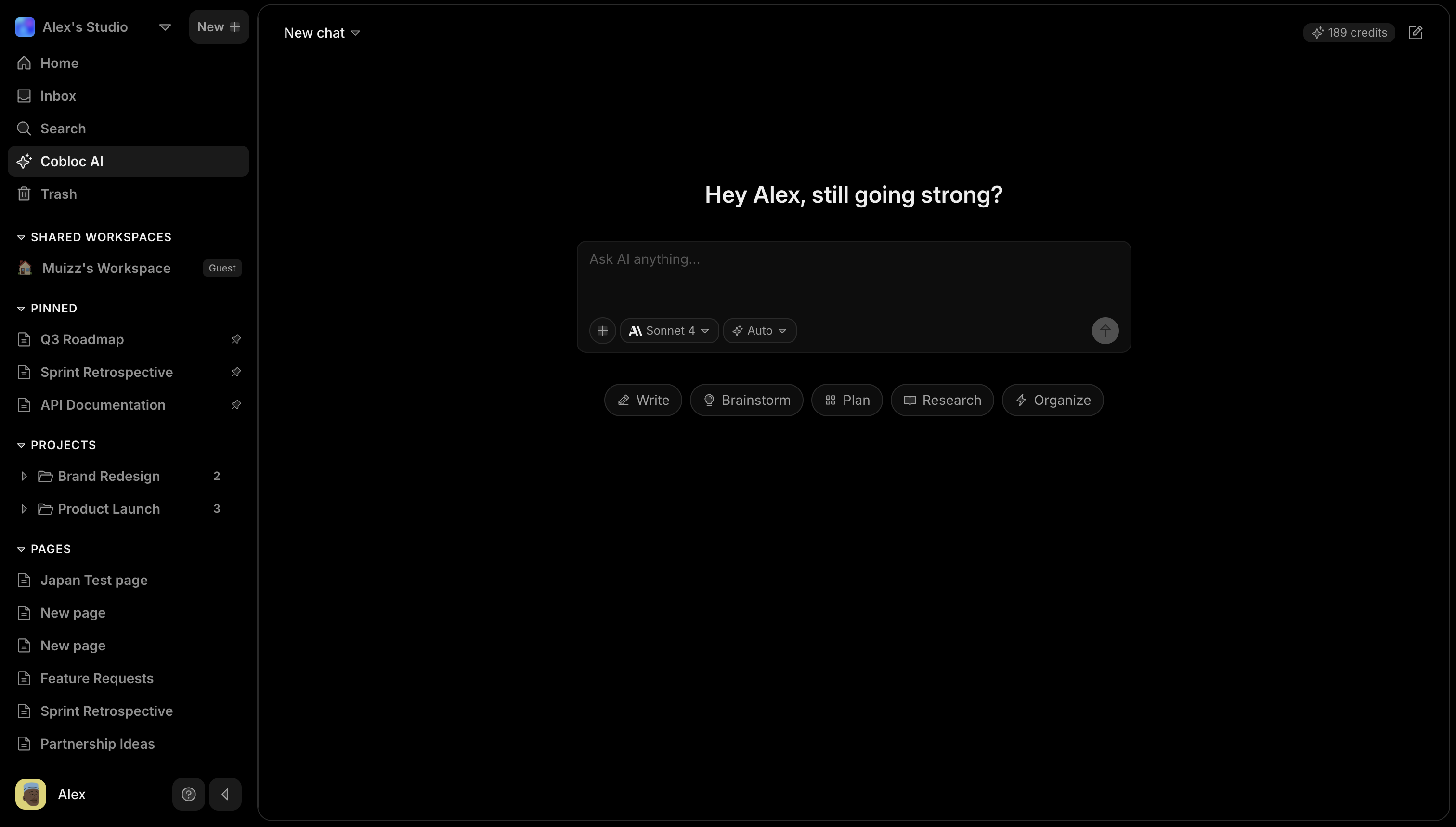
Cobloc now has a dedicated AI page accessible from the sidebar. Chat with Claude Sonnet, GPT-4o, or Gemini Flash. Ask questions, brainstorm, write content, and get summaries. Your conversations are saved with full history, auto-generated titles, and grouped by time (Today, Yesterday, This week).
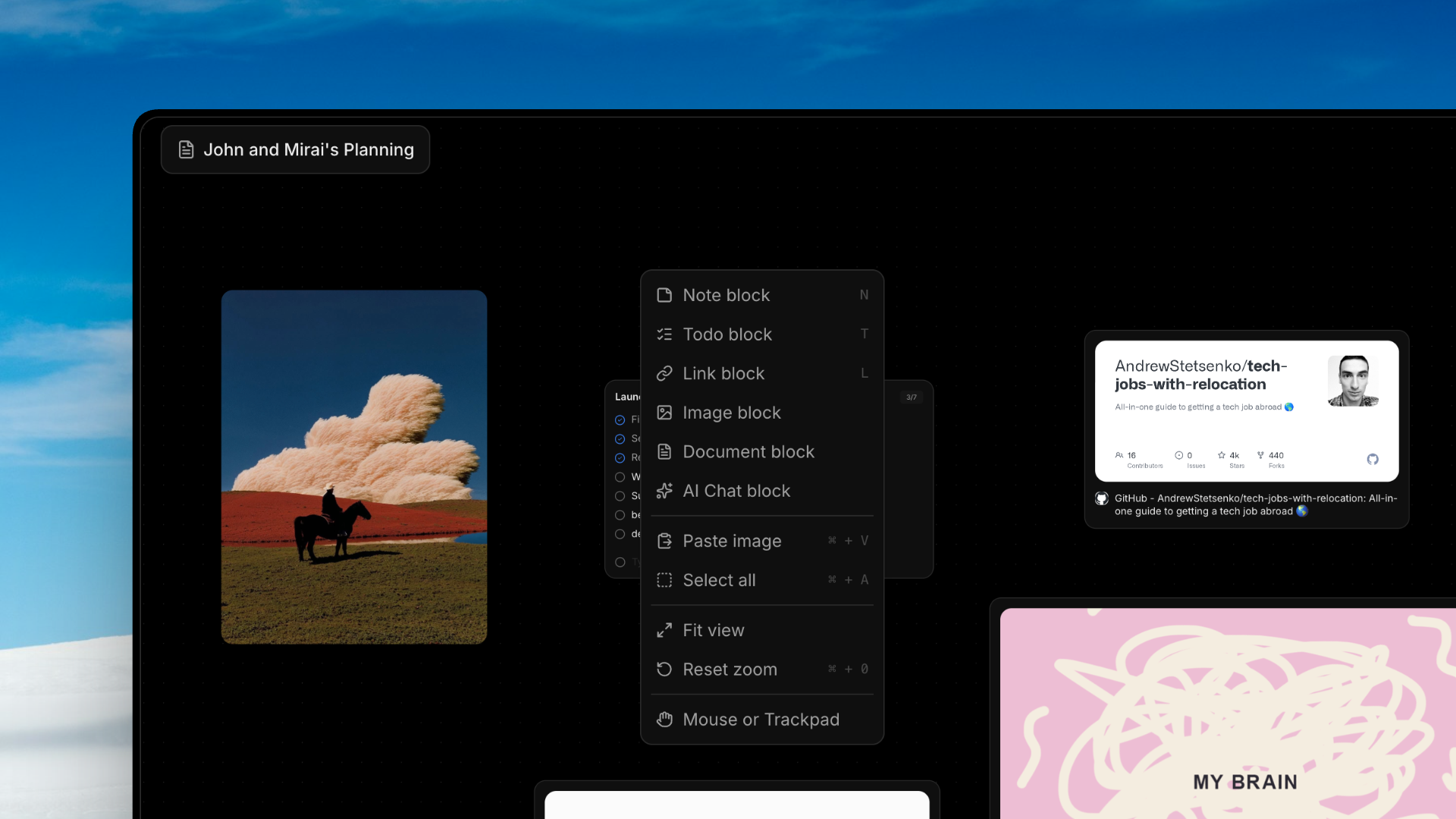
Attach a page via the + context button to unlock canvas tools. Cobloc AI can create note blocks, todo blocks, and link blocks directly on the attached page. Undo or accept generated blocks with a single click. Six AI modes (Auto, Canvas Builder, Web Research, Page Review, Summarize, and Brainstorm) guide Cobloc AI’s behavior for different tasks.
Each conversation has its own URL so you can reload the page and return to the same chat. Context attachments persist across sessions and page reloads.
Multimodal support
Attach images and PDFs to any AI conversation. Paste them directly into the chat box or use the + menu to attach. Images are sent to vision-capable models so Cobloc AI can describe, analyze, or answer questions about what it sees. PDFs are read and extracted automatically. Ask Cobloc AI to summarize a document, pull out key points, or answer questions about its contents. Click any attached image or PDF to preview it in a lightbox with a page stack viewer for PDFs.
Canvas AI panel
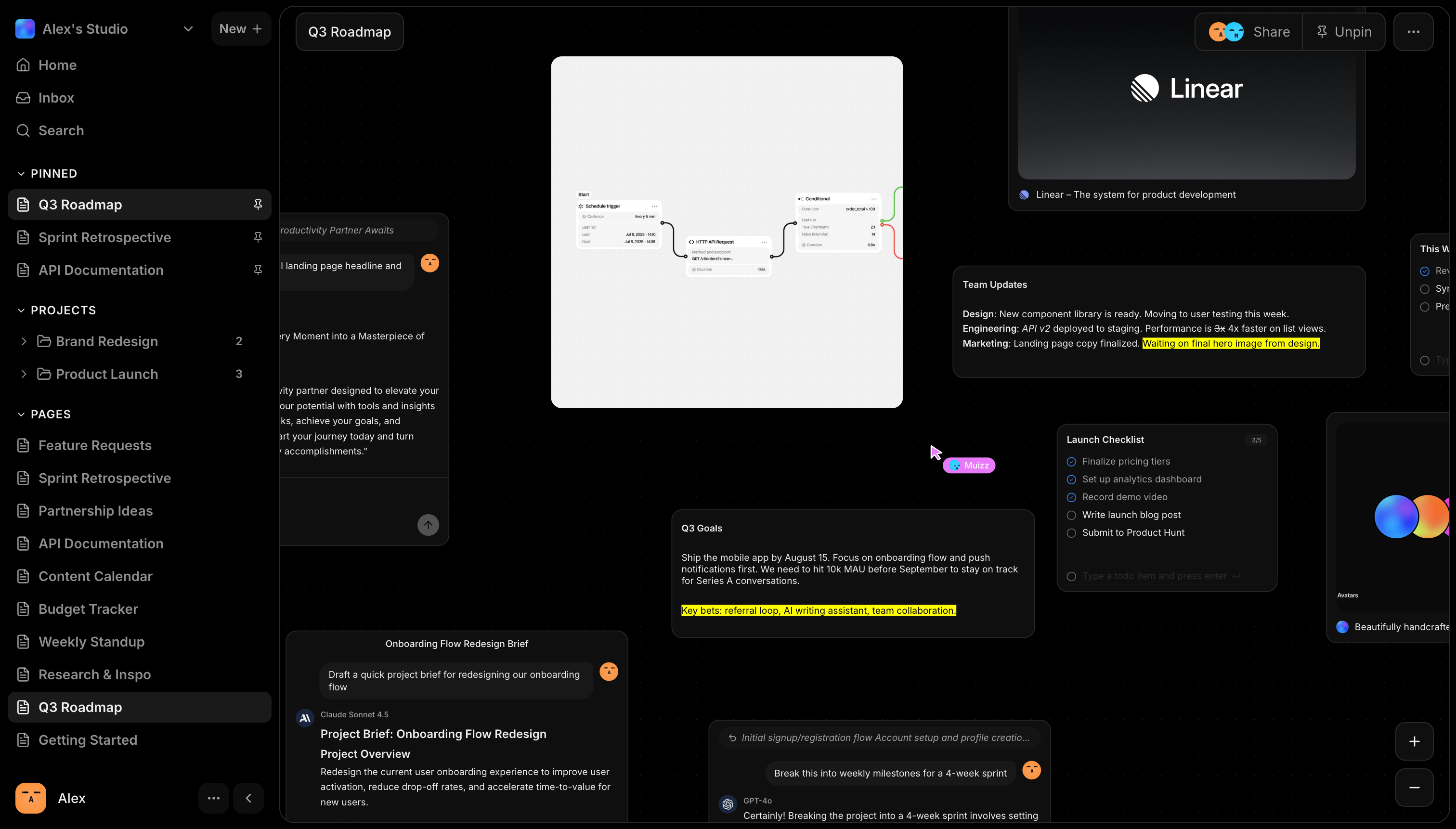
The sidebar AI panel on every canvas page now shares the same capabilities as the full AI page. Six AI modes, thinking blocks with Claude Sonnet, image and PDF attachments via the + dropdown or paste, and status messages during generation. A quote-reply feature lets you highlight any AI response text to reply in context.
Block-to-AI-Chat connections
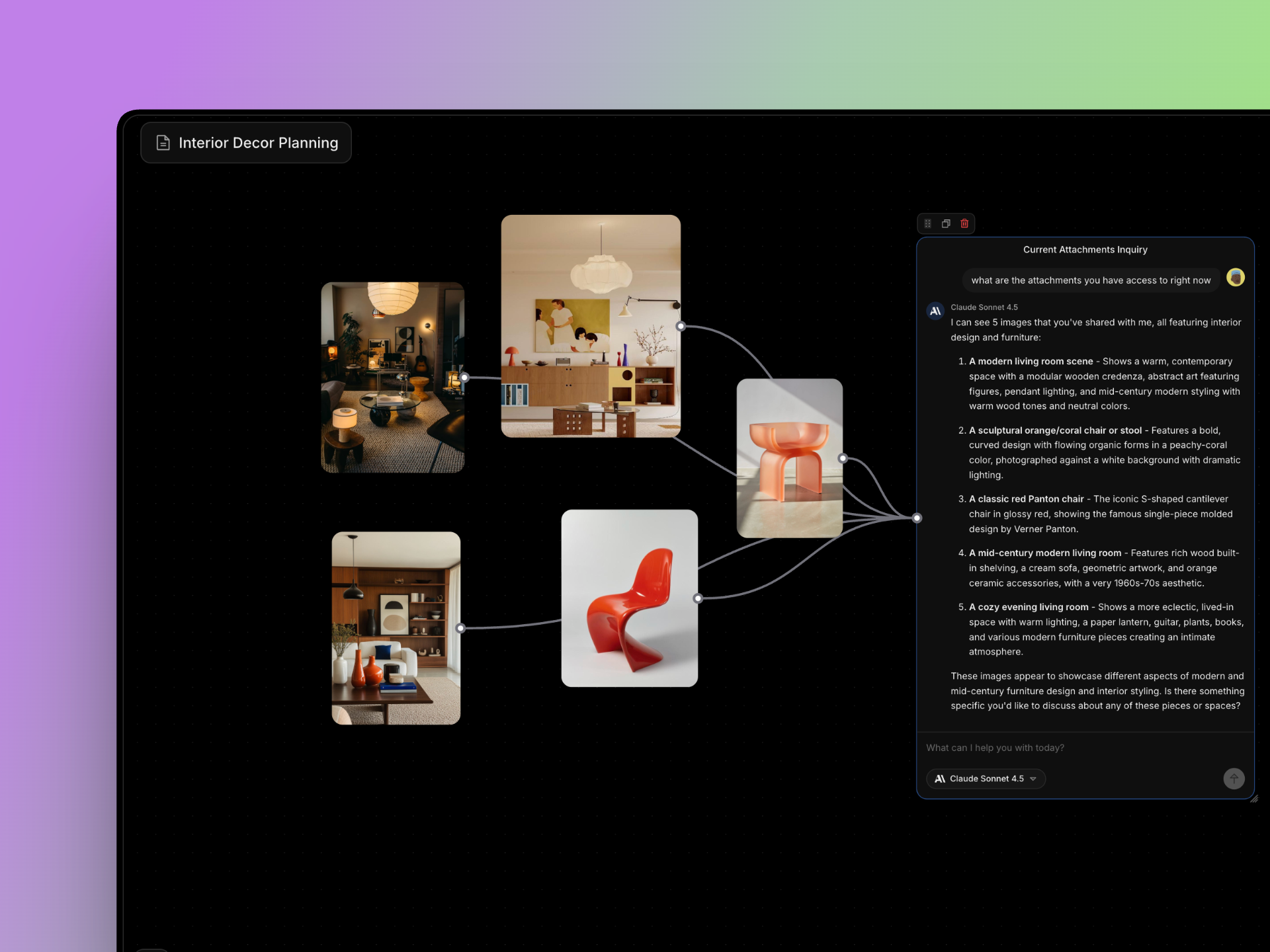
Connect image, note, todo, and document blocks directly to an AI Chat block on your canvas. Hover over any content block to reveal a connector dot on its right edge, then drag to the dot on an AI Chat block’s left edge. Connected content is automatically included as context in every message. Images are sent as visual attachments, notes and todos as text, and PDFs with extracted text.
Connections always use the latest content, so updates to a connected block are reflected on your next message. Hover over the bezier curve edge line and click the X to remove a connection. Connector dots stay visible when a block has an active connection.
AI Chat block
AI Chat blocks on the canvas are now resizable from 440px to 1200px wide using the diagonal resize handle at the bottom-right corner. The text input auto-expands as you type or paste longer prompts. Dimensions persist across page reloads. Edge connections follow the block as it grows during streaming.
Fixes & refinements
- ●Strikethrough and reduced opacity on completed todo items with smooth animation on toggle
- ●Dashed circle indicator on the todo input row to distinguish it from created items
- ●Single-click todo checkboxes, no need to select the block first
- ●AI-created link blocks now auto-fetch metadata previews
- ●Category prompt panel opens with animation from the clicked pill
- ●Click outside to close the category panel
- ●Chat history titles in active foreground color
- ●Code blocks in AI responses now have a copy button in the top-right corner
- ●Chat scrolls to bottom when opening a conversation without flickering
- ●Chat stays in place when scrolling up during AI streaming
- ●Onboarding tour updated with Cobloc AI and Canvas AI steps
- ●AI features hidden for guest workspace members
- ●Fixed Yjs CRDT duplication on AI-created note blocks