Start Guide
Everything you need to go from sign-up to your first page in under five minutes.
Cobloc is a spatial workspace where you organize ideas visually. Instead of linear documents, every page is an infinite canvas where you place blocks — notes, todos, images, links, PDFs, and AI chats — and arrange them however you think.
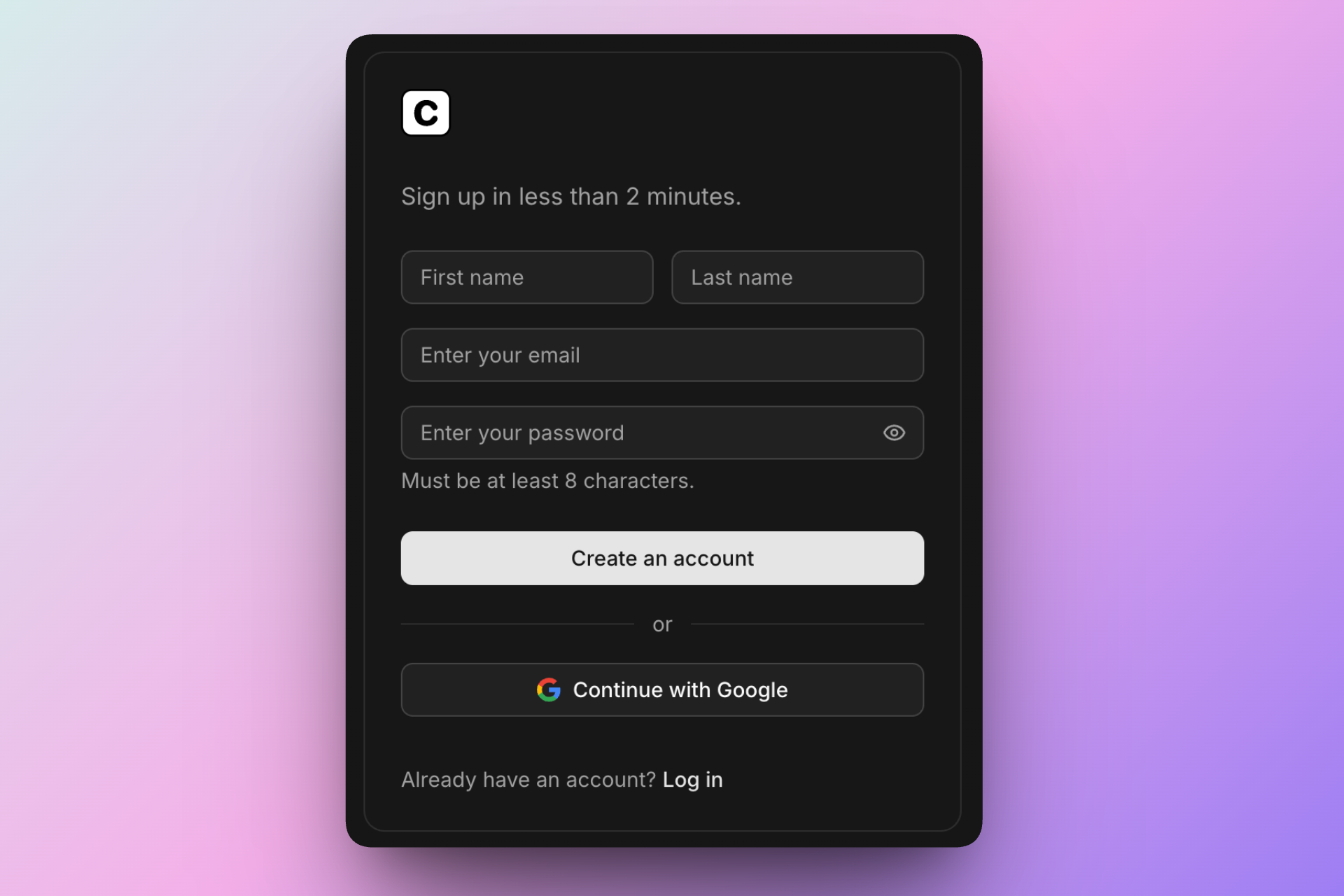
Create your account
Sign up with your email or Google account at cobloc.com/signup. You'll be signed in immediately and taken to your workspace home.
Your workspace
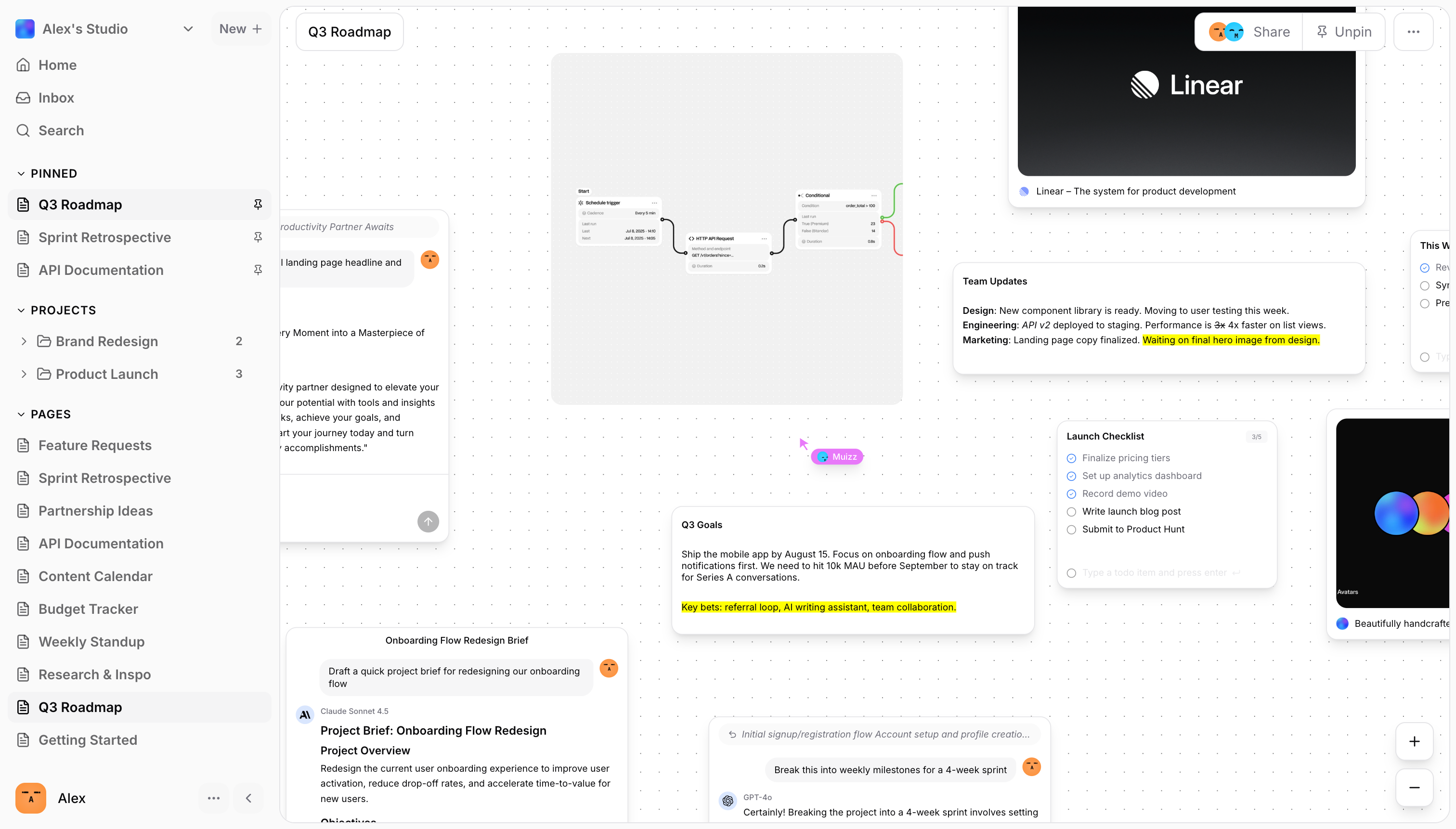
When you sign up, a default workspace is created for you. A workspace is your top-level container — all your pages, projects, and members live inside it. You can create additional workspaces later for different teams or areas of your life.
The workspace home shows your recently visited pages, pinned items, and quick actions. From here you can jump straight into any page or create a new one.
Create your first page
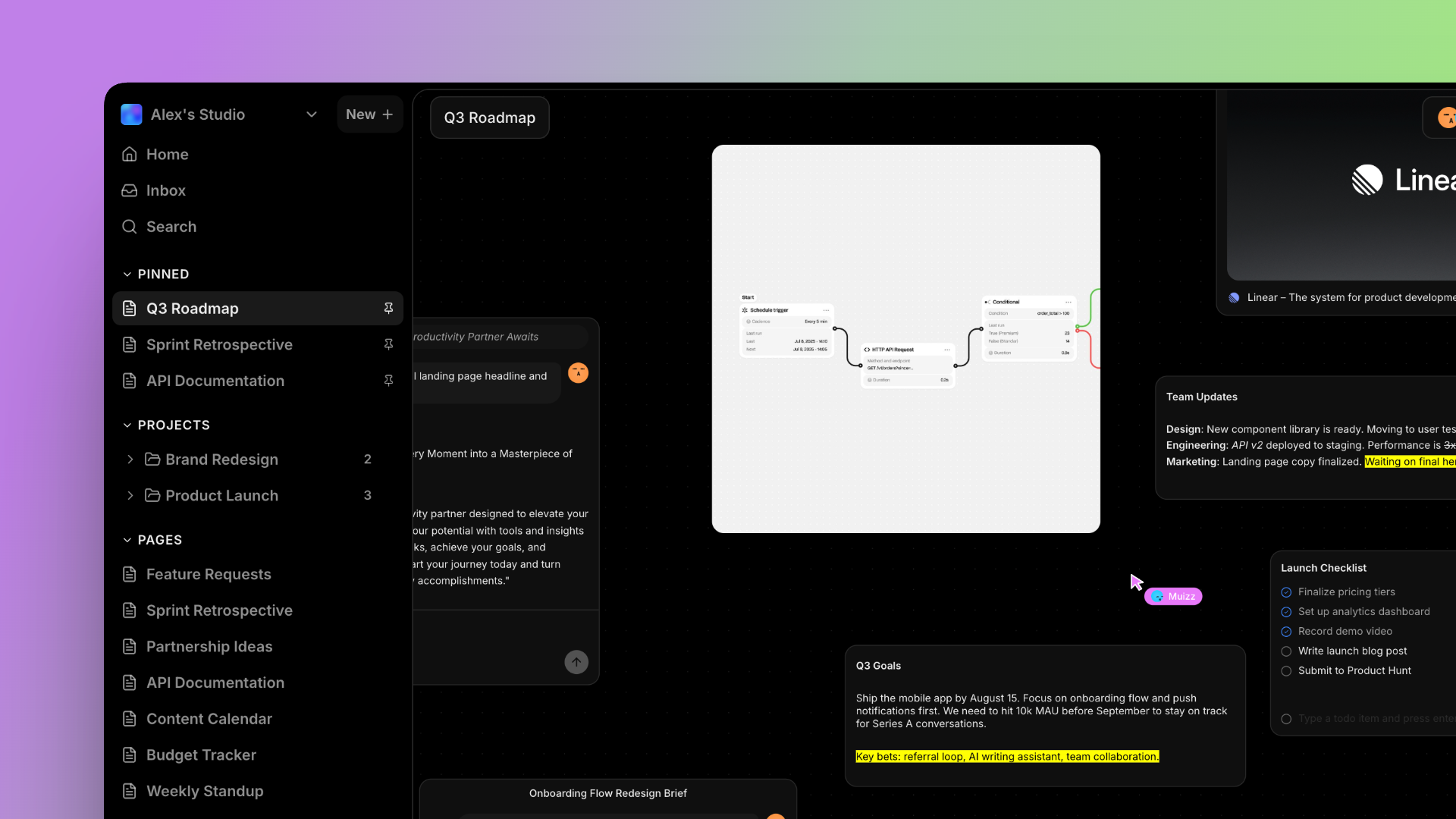
Click the + button next to "Pages" in the sidebar, or press Cmd+Shift+N. A new untitled page opens on an infinite canvas — ready for you to start adding blocks.
Add blocks to the canvas
Click and drag on the empty canvas to draw a selection area. When you release, the block type selector appears — choose from notes, todos, links, images, documents, or AI chat. You can also use keyboard shortcuts:
Organize with projects
As you create more pages, group related ones into projects. Create a project from the sidebar, then drag pages into it — or create new pages directly inside a project. Projects can have their own icon, color, and description.
Navigate with the sidebar
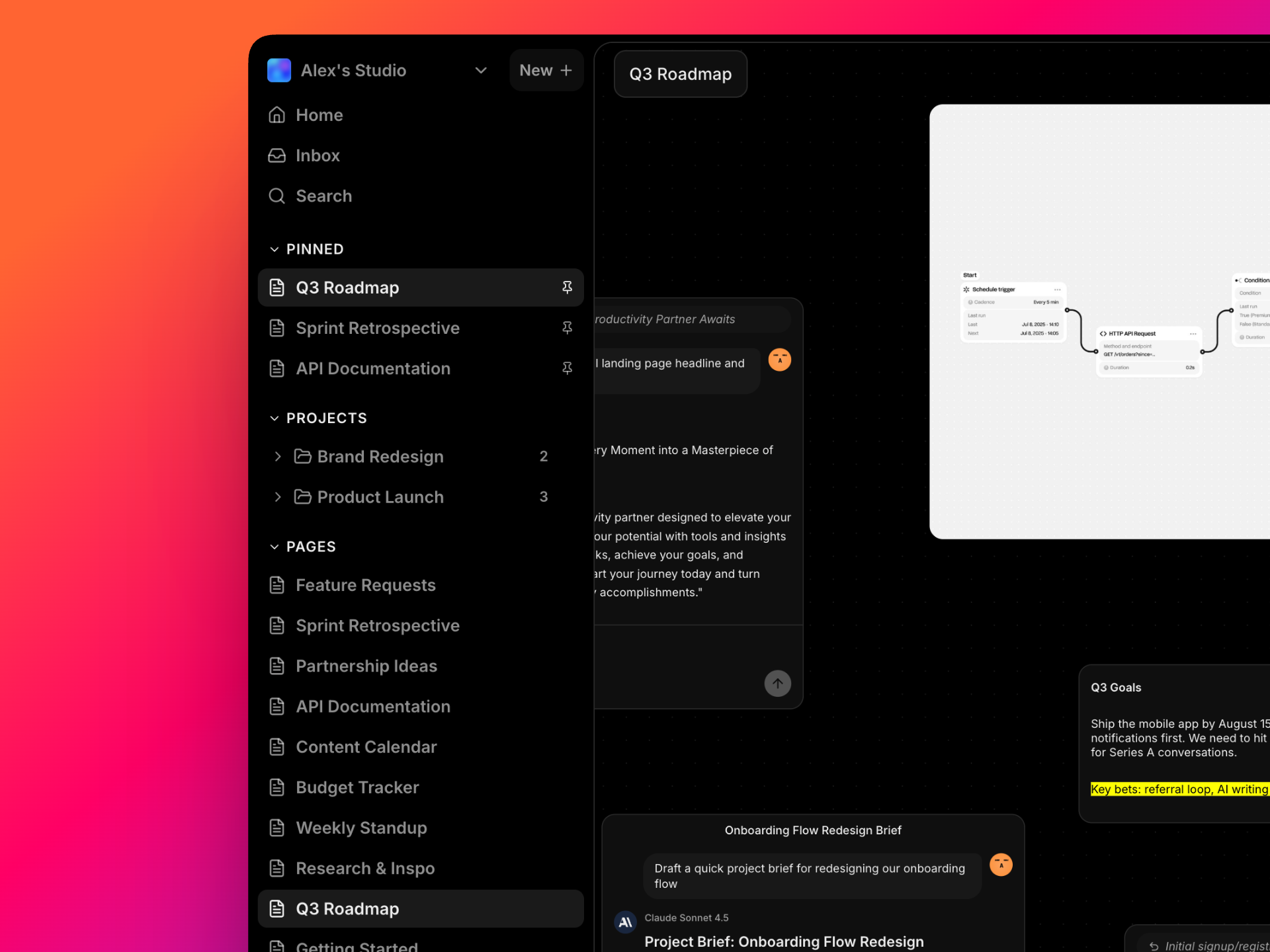
The sidebar is your navigation hub. It shows your projects (with expandable page lists), standalone pages, and pinned shortcuts. Hover over a project to preview its pages instantly. Toggle the sidebar with Cmd+\.
Invite your team
Cobloc is built for collaboration. Open the Share dialog on any page or project, enter an email address, and choose a role (Editor or Viewer). Your teammate will receive an email invitation to join.
Use Cmd+K to open global search and instantly jump to any page, project, or block in your workspace.