Sidebar
Navigate your workspace, projects, and pages from the sidebar.
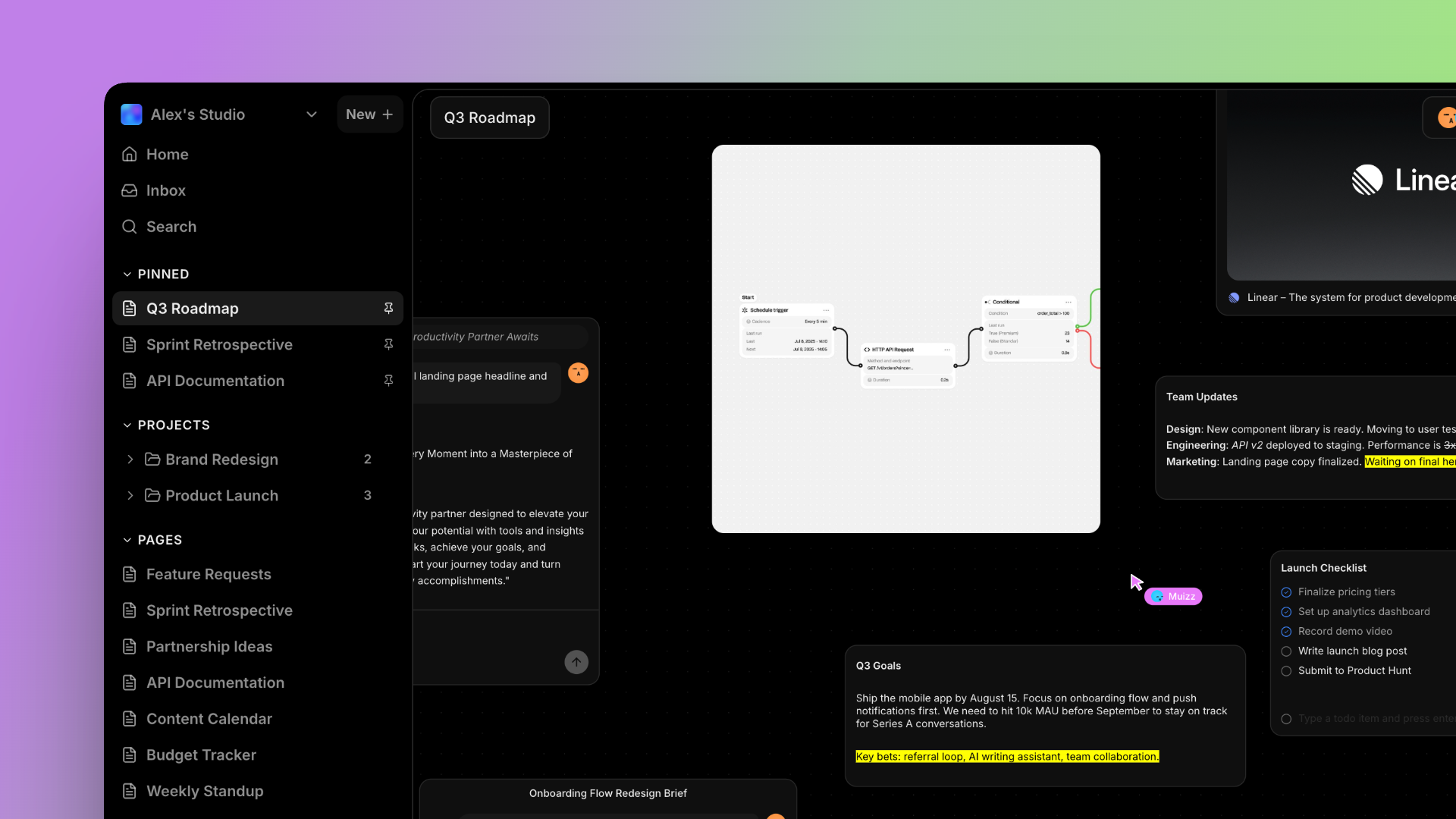
The sidebar is your main navigation hub. It gives you quick access to everything in your workspace: projects, pages, pinned items, and more. Toggle it with Cmd+\.
Workspace selector
At the top of the sidebar, click the workspace name to open the workspace dropdown. From here you can switch between workspaces, see workspace settings, or create a new workspace.
Pinned shortcuts
Pin your most-used pages and projects for instant access. Pinned items appear at the top of the sidebar under Shortcuts. To pin an item, right-click it or use the three-dot menu and select "Pin".
Projects section
All your projects are listed in the sidebar. Click a project to expand it and see its pages. Hover over a project name to instantly preview its pages without clicking — this preloads the data so expansion is instant.
Each project shows a page count badge. Click the + icon next to a project to create a new page directly inside it.
Pages section
Pages that don't belong to any project appear under the standalone "Pages" section. You can move a standalone page into a project at any time from the page's three-dot menu.
Collapsing the sidebar
Press Cmd+\ to collapse the sidebar and give more room to your canvas. The sidebar slides away and a small toggle button remains at the edge. Press the shortcut again to bring it back.
On mobile, the sidebar opens as a slide-in overlay. Tap the menu icon in the top bar to toggle it.